

Xtreme HD IPTV Installation Guide for Firestick and Android
Welcome to the Xtreme HD IPTV family!
If you have recently purchased your Xtreme HD IPTV plan and are not sure how to start using it on your Firestick or Android device, this guide will help you complete the setup process with ease.
In this step-by-step guide, you will learn how to prepare your device, install the Downloader app, enter your subscription details, and complete the Xtreme HD IPTV setup properly. The process is simple, but following each step carefully will help you avoid common installation issues.
This guide is useful for Firestick, Fire TV, Android TV, and other Android-based devices. Once the setup is complete, you can start enjoying live TV, movies, series, sports, and other available entertainment options through your IPTV app.
A proper setup is important because it helps the app run smoothly and gives you a better streaming experience on your device.
Note: We do not host, store, or stream copyrighted content. This guide is shared only for educational and setup purposes.
Install and Set up Xtreme HD IPTV
To help you complete the Xtreme HD IPTV installation quickly, we have divided the guide into three simple parts.
First, we will show you how to enable installation from unknown sources on your device. After that, we will guide you through installing the Downloader app, which is required to download the Xtreme HD IPTV app. Finally, we will explain how to install the app and log in with your subscription details.
By following the process step by step, you can complete the installation without confusion. Let’s begin with the first step.
Step 1: Enable Unknown Sources
Start by preparing your Firestick for the Xtreme HD IPTV installation.
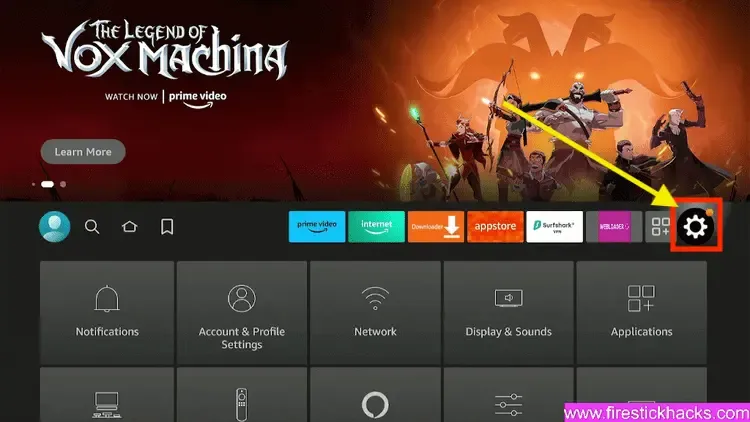
Go to Settings from your Firestick home screen.
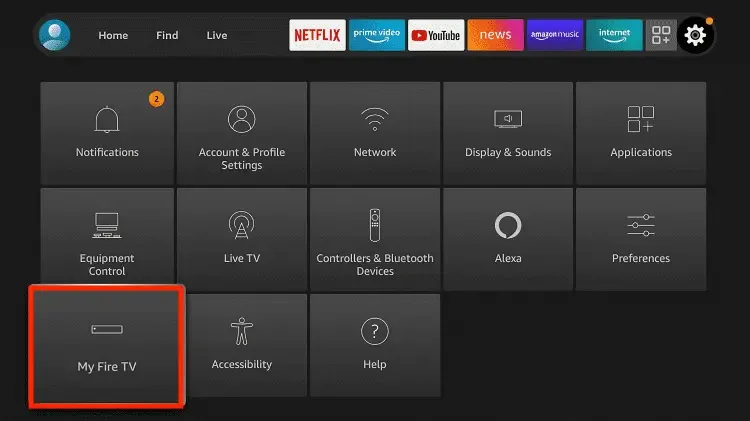
Scroll and select My Fire TV.
Then go to About and highlight Fire TV Stick 4K Max or the device model you are using. Press the OK button several times until Developer Options are enabled.
The first step is now complete. Next, we will install the Downloader app. After installing Downloader, we will enable unknown sources for the Downloader app as well.
Step 2: Get Downloader App on Firestick
The Downloader app is an important tool for Firestick users who want to install apps that are not available directly through the Amazon App Store.
It allows you to download and install third-party apps by entering a code or URL. This makes the Firestick IPTV setup process easier and faster.
Follow the steps below to get Downloader on Firestick. Android users can also download the Downloader app from the Google Play Store if it is available on their device.
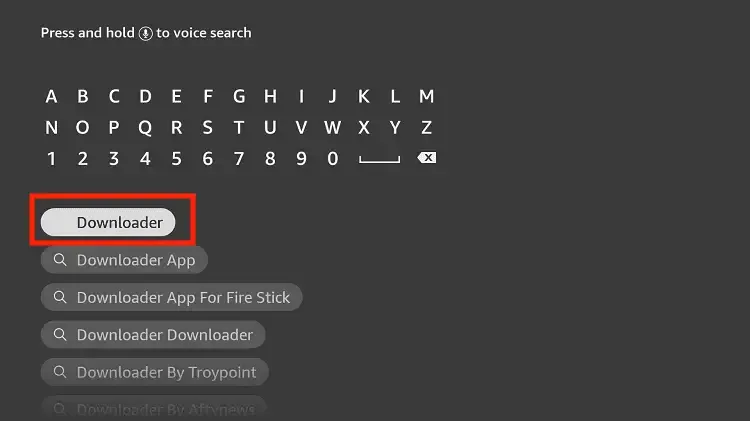
Go to the home screen and click on the Find option or the magnifying glass icon from the menu.
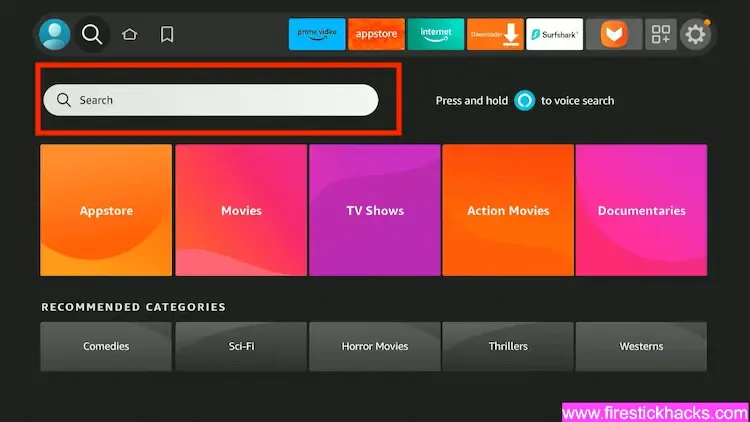
Type Downloader using the on-screen keyboard.
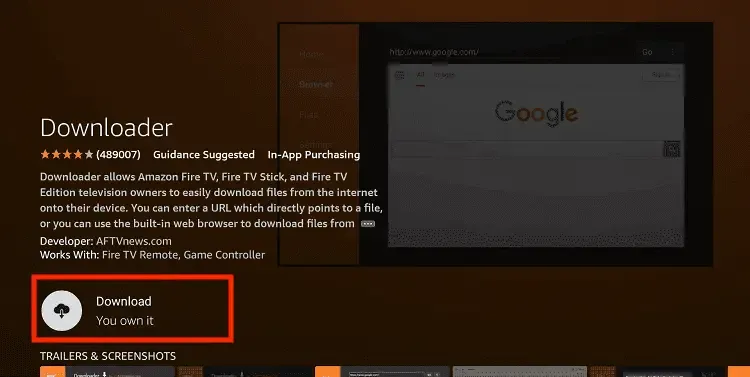
The Downloader app has an orange background, so make sure you select the correct app.
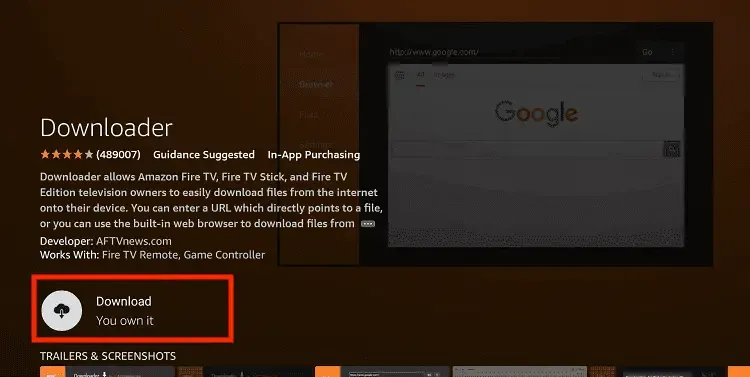
On the next screen, click the Download button.
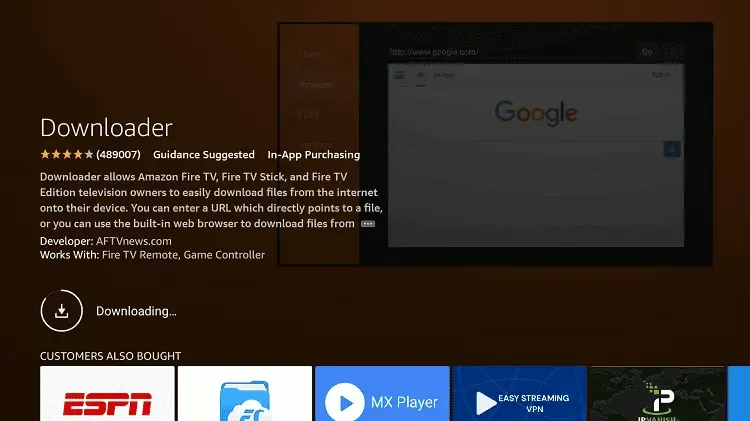
Once the app is installed, do not open it yet.
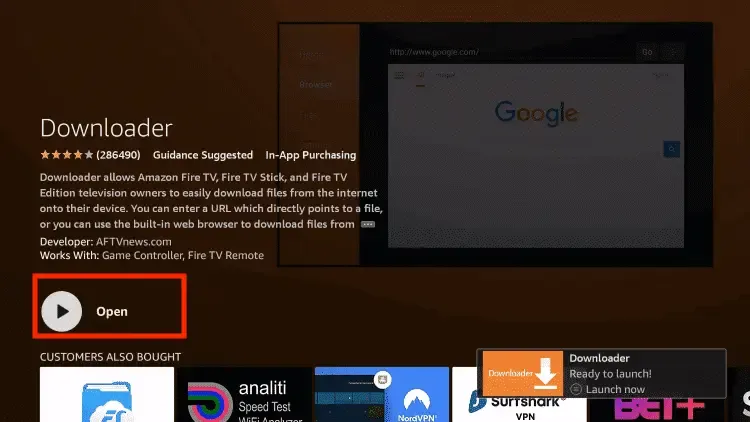
Enable Unknown Sources 1.2:
To allow Downloader to install the Xtreme HD IPTV app, you need to enable unknown app installation for Downloader.
Follow these steps:
- Go to Settings > My Fire TV > Developer Options.
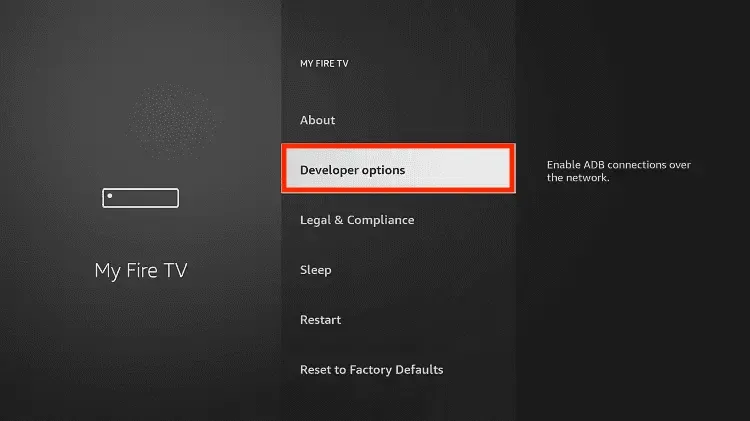
- Find Install Unknown Apps or Apps from Unknown Sources and select it.
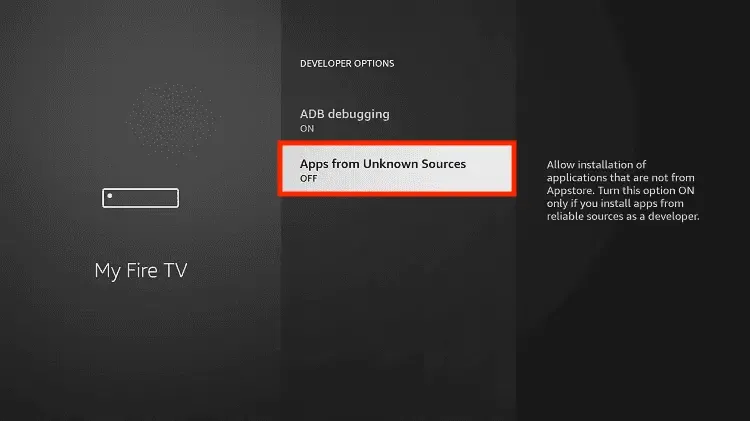
- You will see a list of apps. Locate Downloader. It will be shown as Off.
- Hover over Downloader and press OK on your remote to turn it On.
After enabling this option, Downloader will have permission to install third-party apps such as the Xtreme HD IPTV app.
Step 3: Download and Set up Xtreme HD IPTV
Now that unknown sources are enabled for Downloader, you can download and install the Xtreme HD IPTV app.
Follow the steps below carefully and avoid pressing unnecessary buttons during the download process.
Go to the home screen and click on the Applications icon next to the profile section.
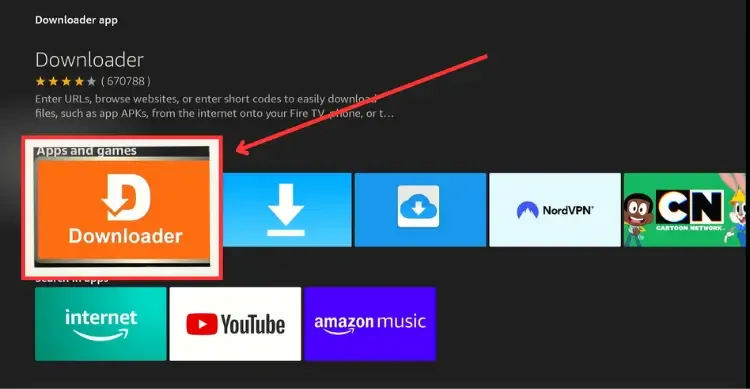
Scroll down and launch the Downloader app.
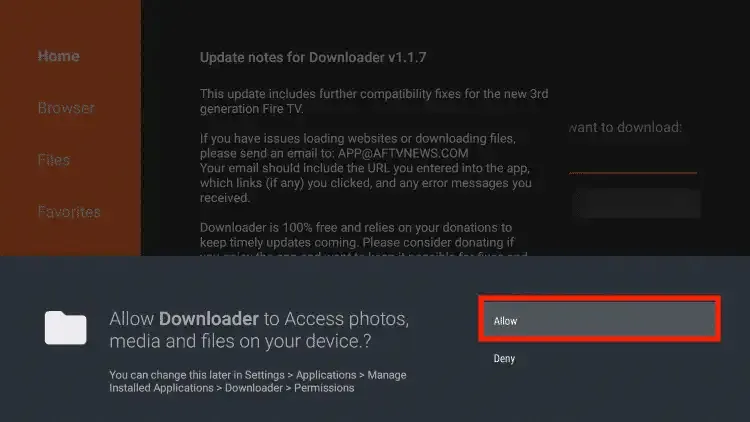
Click Allow when the app asks for permission to access media, files, or storage.
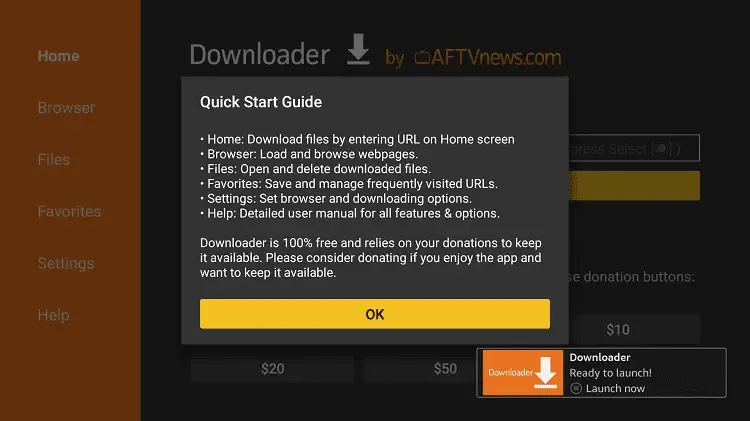
Click Got It when the quick guide menu appears.
New Code for XtremeHD APP -> 272483
Now click on the empty box and type this Downloader code:
272483
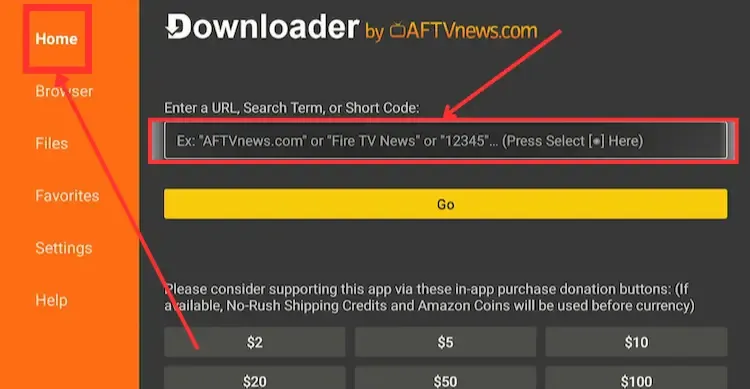
Wait for a few seconds. The Downloader app will automatically redirect and start downloading the Xtreme HD IPTV app.
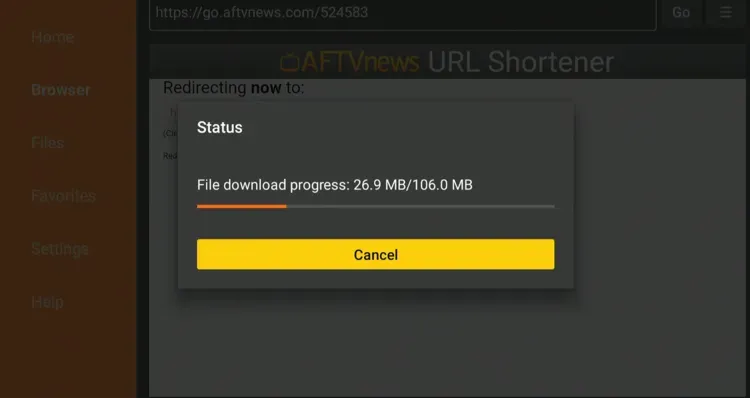
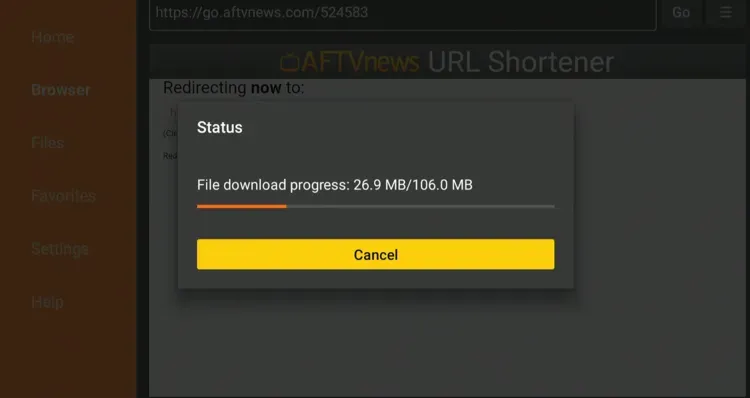
The download may take some time. Do not press any key on the remote while the file is downloading to avoid interruptions.
Once the app is downloaded, the installation screen will appear. Click Install from the bottom-right corner.
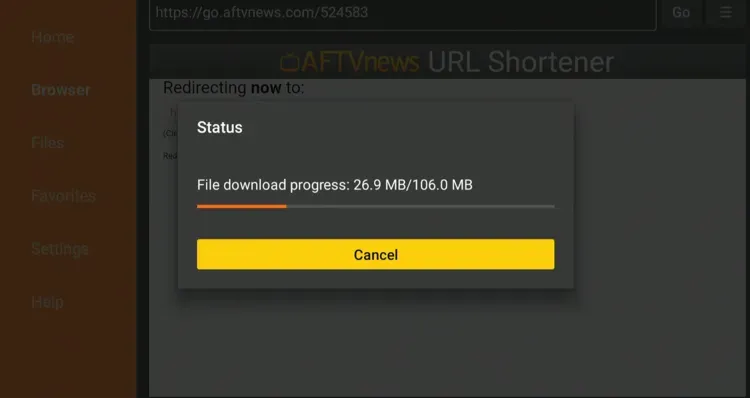
Wait for a few seconds while the installation is completed. Once done, click Open or use the menu option to launch the app.
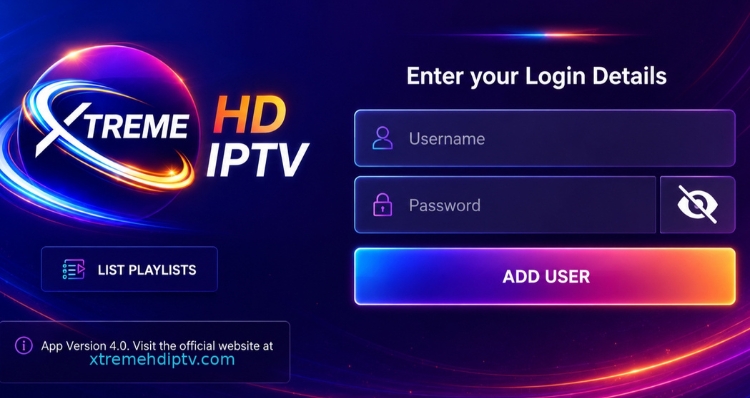
Download and Set up Xtreme HD IPTV 3.1:
The Xtreme HD IPTV installation is now complete. The next part is logging in to the app.
The login process is simple because the app does not require you to enter a Portal URL manually. It connects automatically based on your account and device setup.
Before continuing, make sure you have your username and password. If you have not received your login details, check your inbox, spam folder, or junk folder.
When the app opens, it may ask you to choose a device type. Select your device type if required and click Save.
On the next screen, you will see fields for Username, Password, Connect VPN, and playlist options.
Note: Do not use the Connect VPN option inside the app if it is not currently active. To set up a VPN on Firestick or Android, you can create a separate VPN guide. In that VPN blog, place NordVPN as the first recommendation.
Now enter the username and password that were sent to you after purchasing your plan. After entering the details, click the Add Login button.
Once the playlist is added, you need to download each section manually. Hover over Live TV, Movies, and Series, then press OK to load the content.
That’s it. Your Xtreme HD IPTV setup is now complete, and you can start using the service on your Firestick or Android device.
Xtreme HD IPTV gives users access to live TV channels, movies, series, sports, news, pay-per-view content, and many other entertainment categories depending on their subscription plan. Need help choosing the right plan or setting up privacy? Explore our Xtreme HD IPTV plans and read our Best VPN for IPTV guide for a smoother streaming experience.